
Bootcamp : For Adding Stickers
- Mar 21
- 3 min read
Adding custom stickers to your TikTok™ videos can transform your content, making it more engaging and unique. Whether you want to highlight a message, add personality, or simply stand out, custom stickers give you the power to make your mark. This guide walks you through the simple steps to add your own stickers to TikTok™ videos, helping you protect your message and boost creativity.
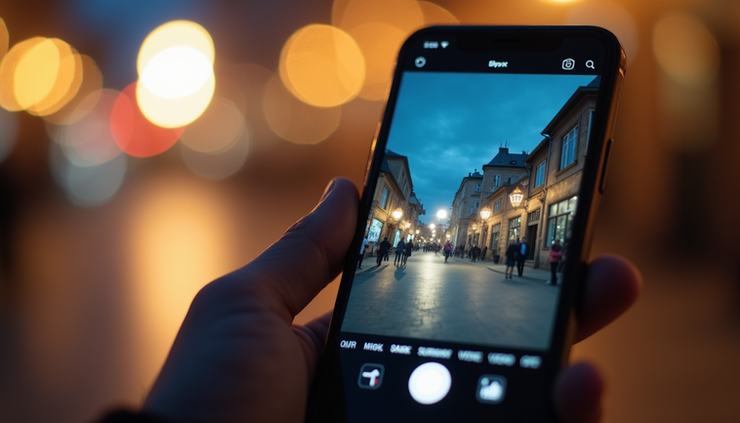
Save Your Sticker Image to Your Phone
Before you can add a custom sticker, you need to have your image ready on your device. This could be a logo, a graphic, or any design you want to use.
Open the image in apps like Discord, Telegram, TikTok™, or your web browser.
Tap the image to view it in full screen.
Press and hold the image, then select Save to Photos or Download Image.
Having your sticker saved locally makes it easy to upload when editing your TikTok™ video.
Start Creating Your TikTok™ Video
Once your sticker image is saved, open TikTok™ to begin creating your video.
Launch TikTok™ and tap the + button to start a new post.
Record a new video or upload one from your gallery.
When your video is ready, tap the Stickers icon on the right side of the screen.
This opens the sticker menu where you can add emojis, GIFs, and your own custom images.
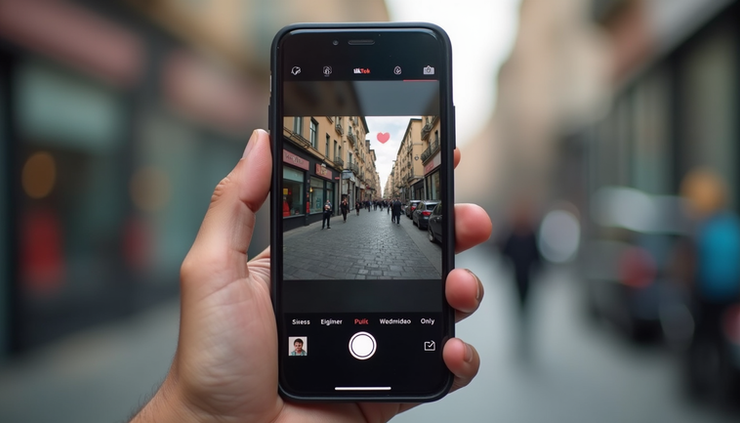
Upload and Customize Your Sticker
Now it’s time to bring your design into the video.
Tap the Upload Image button (usually a plus icon).
Select the sticker image you saved earlier.
Optionally, tap Remove Background to create a floating sticker effect without a solid background.
This step lets your sticker blend naturally into the video, making it look polished and professional.
Position Your Sticker and Set Its Timing
To make your sticker work perfectly with your video, adjust its size, position, and when it appears.
Drag the sticker to move it anywhere on the screen.
Pinch with two fingers to resize or rotate the sticker.
Tap the sticker and select Set Duration to control the exact time it shows up and disappears.
This control helps you highlight important moments or keep your video clean and uncluttered.

Tips for Using Custom Stickers Effectively
Use stickers to emphasize key points or calls to action.
Keep stickers relevant to your video content to avoid distraction.
Experiment with sticker size and placement to find what looks best.
Use the background removal feature for a cleaner look.
Save your favorite stickers for quick access in future videos.
Custom stickers can help your videos feel more personal and memorable, encouraging viewers to engage and share.
✨ Final Thoughts: More Than Just a Sticker
Stickers aren’t just decoration—they’re expression.
They take a video from something you watch… to something you feel.They add personality, intention, and identity to every post.
A simple sticker can:• Highlight the message• Draw attention to what matters• Create consistency across our movement• And most importantly—make your content feel alive
At DREAMTEAMstudios™, we’re not just posting videos…we’re building something bigger.
Every sticker placed is a mark of unity.A signal that says: “I stand for this.”
Whether you’re sharing End Silence, asking WHY?, or simply showing up with your voice—your creativity matters here.
💬 We want to hear from you:
• What stickers are you using right now?• Did you try this tutorial—how did it go?• What would you like us to create next for you?
Drop your thoughts, share your videos, and let’s build this together.
✨ Make your mark.
Protect the message.
DREAMTEAMstudios™ // Oniverse Music™


Let us know if this helps and what other things you might need help with. Leave a comment and we will try to get to it asap.